Showing posts with label Blog traffic. Show all posts

Friday, 11 August 2017

Apps to Hide Caller Id in Android ~ gniithelp

Apps to Hide Caller Id in Android
In Smart Phones like Android already has some inbuilt feature to hide phone number. But due to some conditions in some countries, this feature is blocked. But don’t worry there are many android apps available on Android Market that helps you to hide your phone number.

Apps to Hide Caller Id in Android

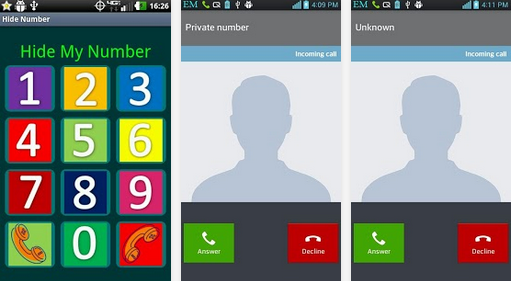
Secret Call – hide Caller ID : Its a free app available on Android Play Store to hide phone number or caller id.

Apps to Hide Phone Number in Android“Secret Call” allows you to initiate calls secretly, meaning hiding your Caller ID. This unique application gives you the choice to hide or show your number whenever you call someone.
Its very easy to Hide phone number using this Android app.
When you call someone, it will ask you hide/show your caller ID. Just select the desire option. And your number is private now.
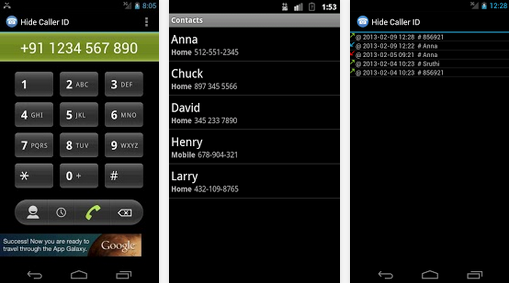
Hide Phone Number Caller ID: This app is freely available on google play. This app basically add a some pre codes to the number you are dialing. Like in my previous tutorial i told you about some codes. Now using this app you don’t have to remember those codes. It will automatically add that to your number.
how to hide caller idWhen you call using this, on called party screen it will display
Private number
– Unknown number
– Number not available
– Withheld number
– etc.
But this app does not work for India. Due to some rules and conditions of Indian Government.
Hide My Caller ID Phone Number : Another free app to hide caller id in Android. This app claims that it works for USA, Uk and India. But for me it does not work.
Apps to Hide Phone Number in AndroidA very cool app that automatically blocks your phone number from appearing on receivers’ phones – it will hide your phone number caller ID. You can let other party see only Private Number.
It supports most mobile operator.
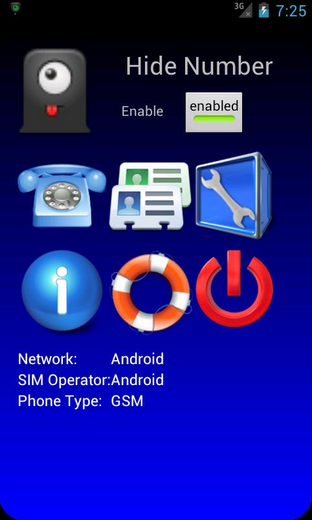
Hide Number (Caller Id): Its a premium app but had great features. It support many operator. You can set whether you want to block your caller id for all number or for some specific number.

Hide phone no

But in India, these services does not work. You have to request your service provider for this. Or you can use third party services.
Due toy strict rules of Indian Government, mobile operator does not allow you to call as a private number.
But in other countries like US, Canada these apps work very well.
Read More »

Here’s how to make PDF forms fillable automatically with PDFelement 6 ~ gniithelp

If you have the trouble in filling the PDF forms that you just got in a mail or downloaded from some site. To fill it up, you need to print it, fill and scan. Or alternatively, you can create the new form yourself. Don’t you think there must be some easy solution to this?  Why not just fill the form directly, yes tools like PDFelement 6can make your forms fillable.
Even there are many other options that can help you in making any forms fillable. Like if you have some printed forms, and you wish to make it electronically fillable. Then you need to design its copy but this tool uses some OCR technology to analyze and create your scan copy into editable pdf documents, even it detects the blank fields too. Lets see all its operations.

How to Make PDF forms Fillable Automatically with PDFelement 6

PDFelement 6 is the newly launched software by the Wondershare. The tool is specially designed to resolve the form filling problem. Its time when everything is getting automated, why we still struggling in editing the PDFs. Let’s see how this tool can help us.

To start with, I will suggest you to First download the Wondershare PDFelement 6. It’s available for Free Trial. Download and install it on your PC.

Create Fillable Forms From Non Editable Forms

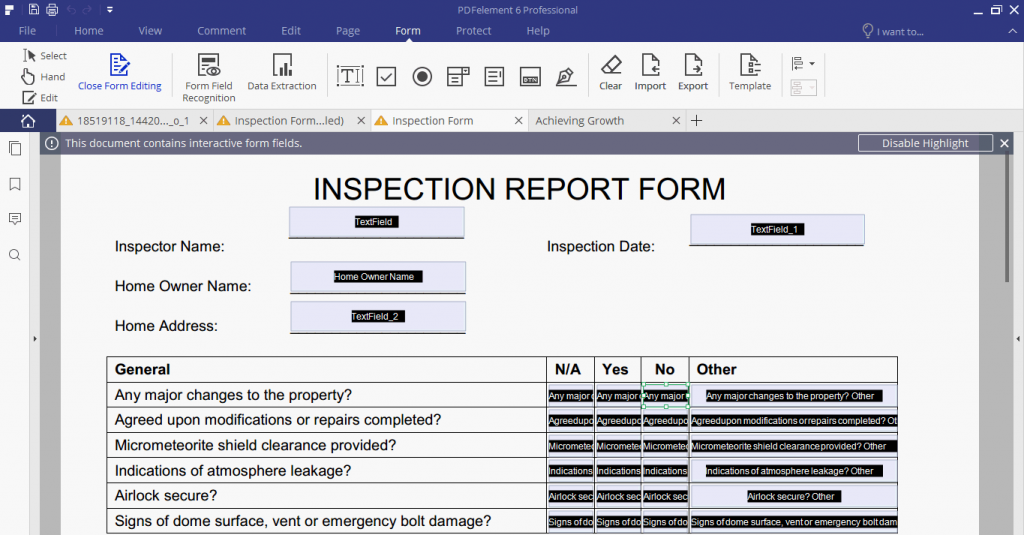
You have some non-editable forms on pdf, word, excel or any office document, with PDFelement 6, you can convert it into editable forms. Then add values to boxes or make any changes. And this can be done in a single click.
Simply open your form document in PDFelement 6 and then click on Form Fill Recognition button. Now you can make any changes to your document.

You can fill the boxes, define name and Value for box. Make it read-only, required, change color, Add formula etc. There are lots of option that you need to make it editable form.
You can also scan any printed forms and then convert it into editable forms with the same method. You can also create new forms, select form the hundreds of templates.
Now next time if you want to require to conduct any survey in your office or anywhere, you can go for this fillable forms then the printed forms. You can even define some custom values, formulas, so it will be easy for the user to fill the form.

Export Form Data into Excel

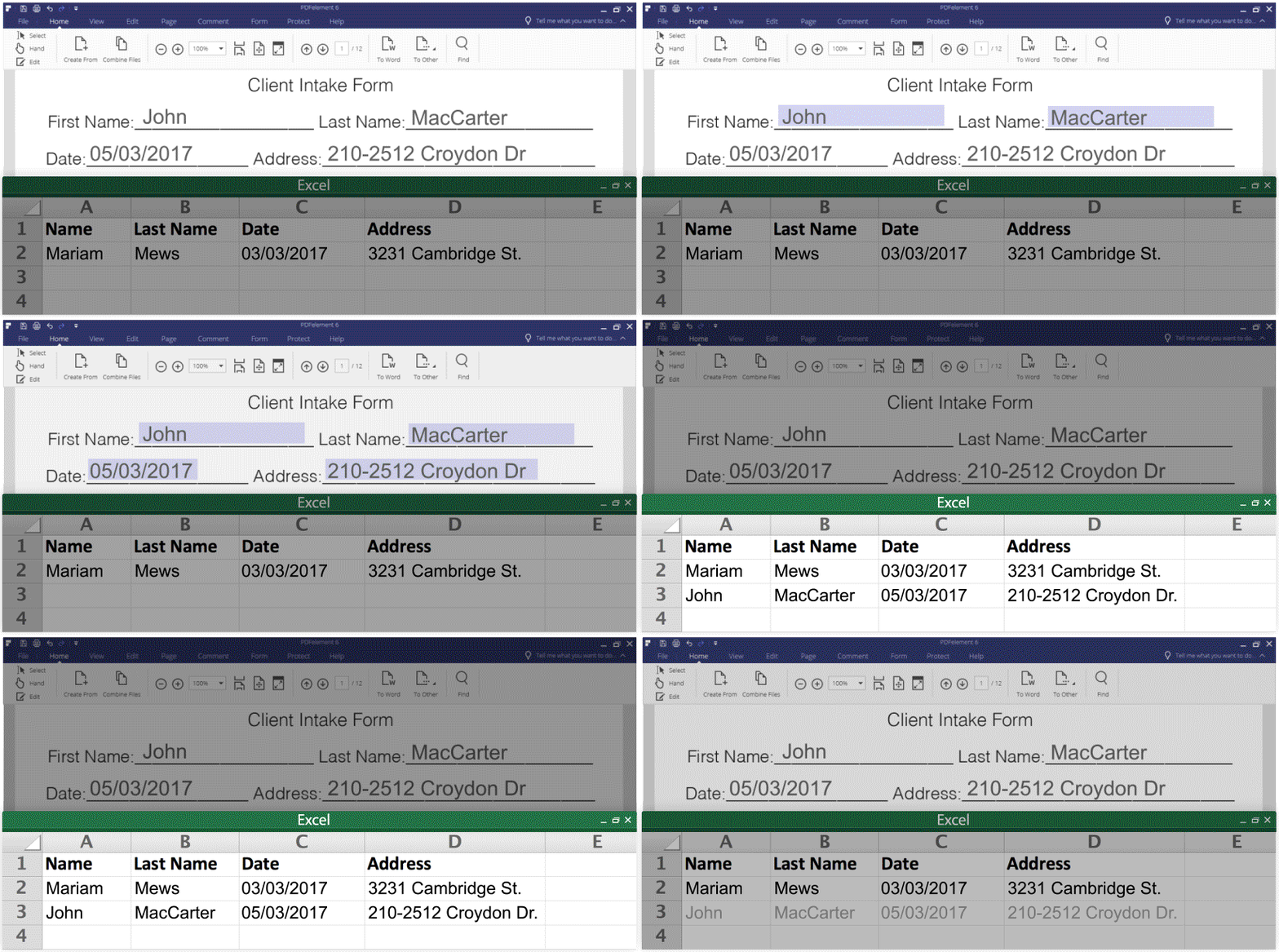
Suppose you have some form and you need to fill it with all members of your office, also you need the filled data into excel file. You can easily make the fillable form with the above method but when it comes to extracting data. Then it again becomes a difficult task.
But this tool can also do that, You just need to open the form into PDFelement 6. Define the field area and then extract it into the excel document. And the best part you can apply the rule to other identical forms. So this will be fully automated, you will get your all forms data into a single sheet.

Make PDF File Editable

If you have any PDF file, and you need to edit some text, pictures or anything, but your old Adobe Acrobat software does not allow you to make changes. Now to edit this you don’t have to waste your time and efforts in redesigning the PDF.
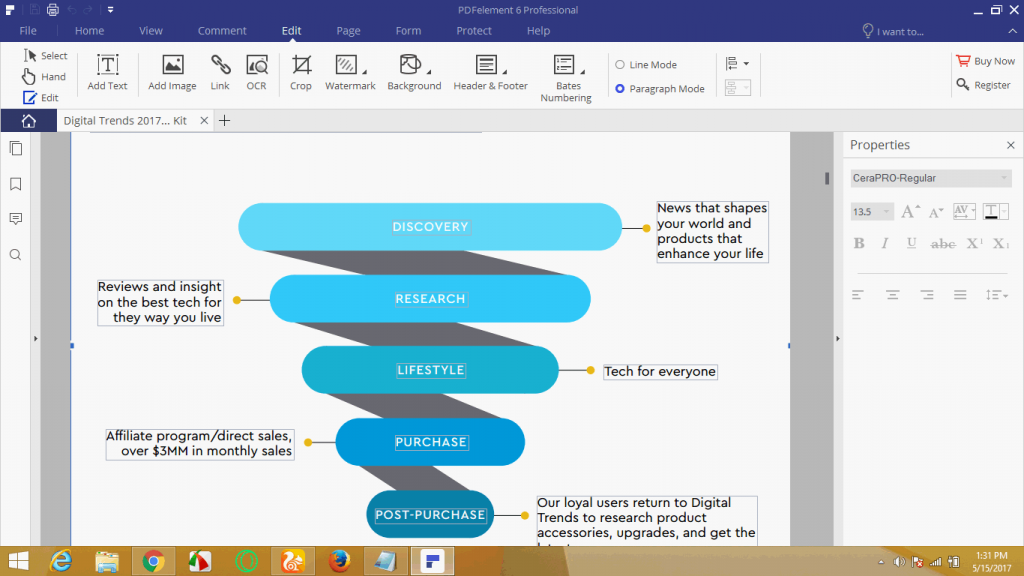
PDFelement 6 can make your PDF editable withing seconds. Then you can edit text, pictures or anything easily.
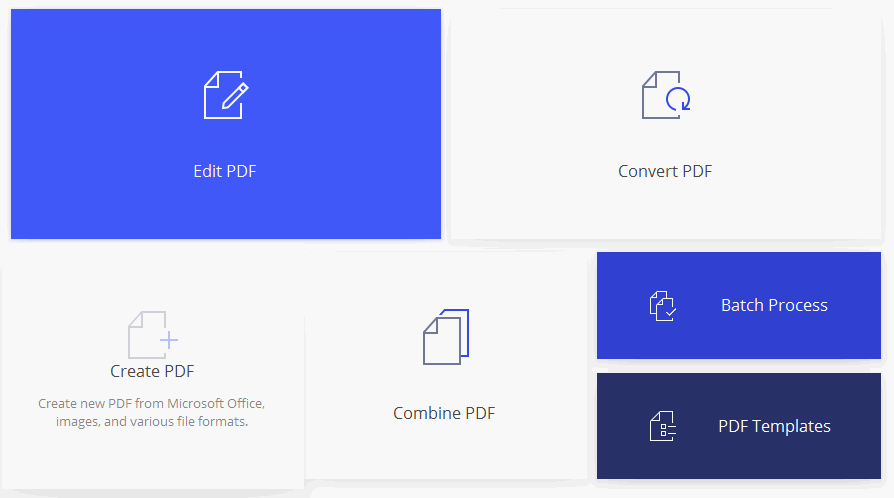
Simply open PDFelement 6 and then Click on Edit PDF box. Browse and open the file you want to edit and within few second it will convert it into editable PDF format.
Now you can see in the above document, I can now edit the text, even the boxes, Images and other graphics. To start editing, you simply need to select the edit button from the top left and then make your desired changes. Beside this, there are lots of editing option that you can find in the edit menu.

Export Data From Scanned Documents (OCR)

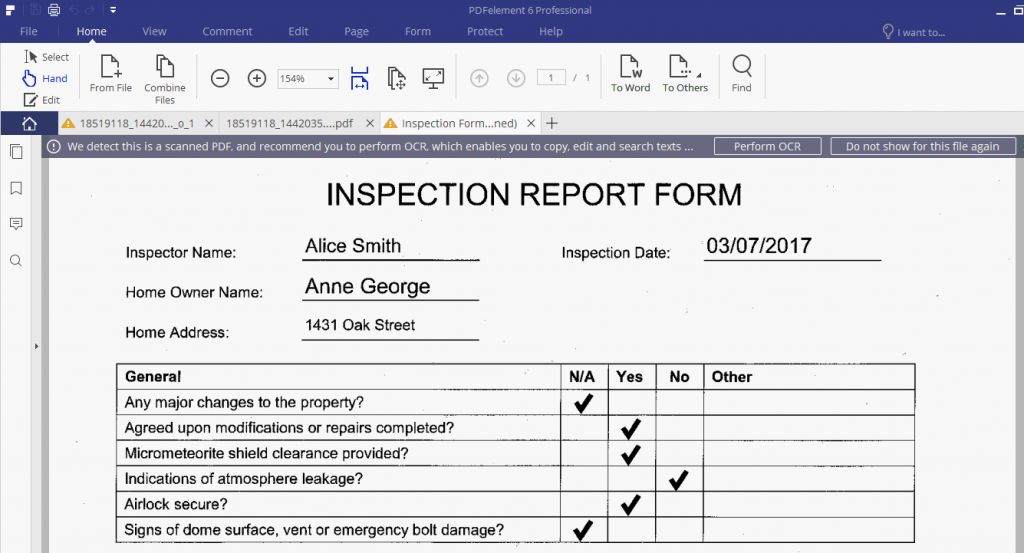
From past few years, I am wasting my time in retype the printed documents, I tried many OCR services earlier but can find this much accuracy that I got with PDFelement 6. It recognized every text, symbols, so accurately, I found upto 99% accuracy.
Simply open the scanned file, photo into PDFelement 6 and then it will ask you to perform the OCR operation. When you grant the permission, it will take some time and convert your scanned document into editable text.
Click on Perform OCR button to start the OCR operation.
You can see now I can edit the text, select, copy like we do it on our normal electronic document. You can also convert it into editable Word, Excel and many other formats.
You can even convert it into a fillable form or extract its data into excel sheet. So next time if you need to fill some form, just scan it and convert into editable form with PDFelement and then use it. It’s so easy.

Verdict

So much with the only one tool. You can create forms, edit pdf, OCR, extract data into Excel and convert pdf into the editable office document. This tool is really very helpful, it just automates all your tasks. Now you do not need to waste your time on typing printed document, creating new forms or manually extracting data from the pdf documents. Just go automate with PDFelement 6.
Read More »

How to Remove Shortcut Virus Permanently from PC, Pendrive and Laptop Computer ~ gniithelp

How to remove shortcut virus permanently? People keep on asking this question to me and it’s common, everyone who uses a computer must have faced this Shortcut virus issue. And for general people find it very difficult to remove shortcut virus.
Or if somehow they manage to remove it comes again. So we need some permanent solution for it. So here I will tell you the method to remove shortcut virus from PC and pendrive permanently with and without using any shortcut virus remover.
how to remove shortcut virus from pc

How to Remove Shortcut Virus?

Before we discuss it, first I want to tell you more about shortcut virus and how it spreads, how it works and how it can harm you.

What is Shortcut Virus?

Shortcut Virus is a program that spreads through flash drives, the internet,  third party software etc. It creates replica of your original files and folders. And when you click on it to open your files, it multiplies itself and installs some more virus and malicious software, browser plugins, keyloggers etc.
With that, it either monitors your PC or it tries to advertise on your browsers or it can also steal your cards details.

shortcut virus
Many people think that this shortcut virus is not harmful, but they don’t know how much harm it can cost to their PC. And some people just try to remove this virus with a delete button. But after some time it comes back.
This shortcut virus is so smart that even most of the Portable antivirus Software is unable to detect it. Or if somehow they discover it or delete it, it somehow manages to recover itself. So you need to look this permanent solution to remove shortcut virusfrom your computer.
More Information:
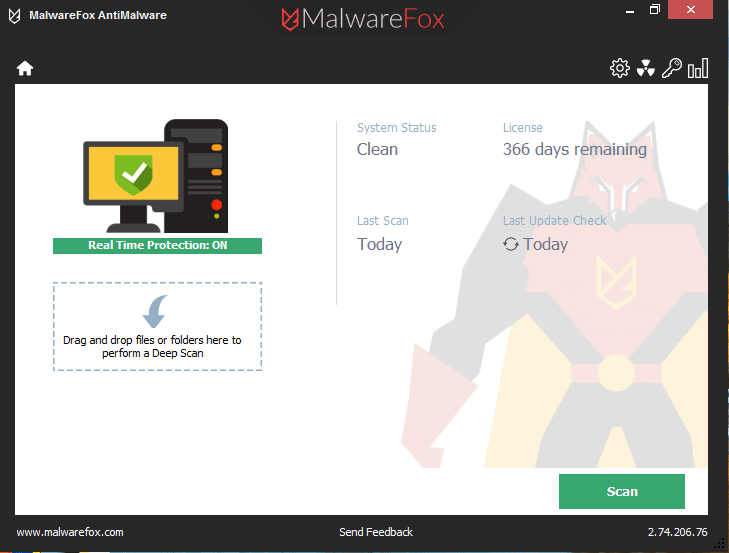
Virus is just one kind of problem of computer security. You can stay protected from all kind of malware by installing one click solution called MalwareFox Anti-malware.
It gets rids of cyber threats like adware, browser hijacker, and even the dangerous Ransomware.

Method -1: Remove Shortcut Virus Using CMD

This is the easiest way to remove shortcut virus from pen drive or PC. You do not require to download any shortcut virus remover tool for it.
  • First, open CMD. Just type cmd in Run or find command prompt in the start menu.
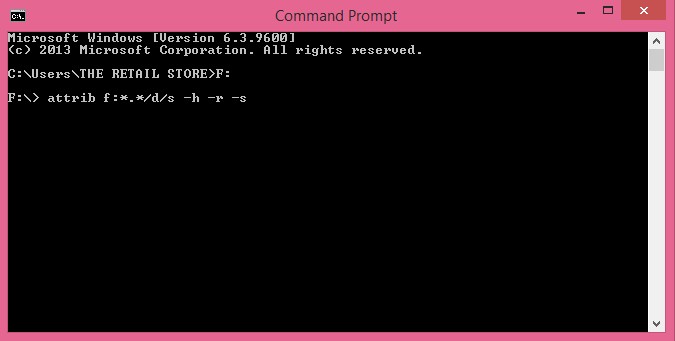
  • Now enter the name of the drive in which virus is located. : Like “f:,” if F is your drive name or any other according to drive from which you want to remove the shortcut.
  • Now type ” attrib f:*.*/d/s -h -r -s ” attrib-h-r-s/s/df:\*.*
    •     -h: to unhide all files on drive W
    •     -r: create the files in drive W is free of read-only attribute.
    •     -s: making all files on drive W to be not part of the system again, so comfortable in the bright
    •     f: w drive
    •     *. *: All files ending in
remove shortcut virus using cmd
  • Now this command will remove all the shortcuts from your drive.
It’s that easy to remove all shortcut virus from PC or USB flash drive using CMD.

Method 2: Remove Shortcut Virus in one click using.Bat file

In the above method, you need to do the same process for all drive again and again. But if you want to remove shortcut virus in single click then just use this method of bat file. It is very easy to create a bat file. Let’s learn how to do it.
  • First Open Notepad.
  • Now copy this code from here and paste it into your Notepad file.
@echo off
attrib -h -s -r -a /s /d Drive-Name:*.* attrib -h -s -r -a /s /d Drive-Name:*.* attrib -h -s -r -a /s /d Drive-Name:*.*
@echo complete
shortcut virus remover
  • Now replace the Drive-Name in the code with all your drives name.
  • save this file as shortcutvirusremover.bat on your desktop.
  • Now run this bat file.
  • It will now remove all the shortcut from all the drives you mentioned in the code.
So this is fast and easy, if next time you found this virus again, only run this bat file and it will delete all.

Method 3 : Remove Shortcut Virus using Shortcut Virus Remover

If you are unable to remove shortcuts using the above cmd method, then you can use these shortcut virus remover tool to clear shortcut virus from your laptop or USB drives. This tool is helpful if you don’t want to do manual tweaks to remove this virus, and it also help in removing it permanently.

  • First Download Shortcut Virus Remover Software from here.
  • Now just open its folder as it does not require any installation.
  • Then Just run this tool.
  • Now it will ask you to select Pen Drive or Computer, from which you want to remove shortcut virus.
  • If you want to remove Shortcut Virus from Pendrive, then select Pendrive option.
  • If you want to remove shortcut virus from Computer, then select a computer.
  • After this, you need to choose the drive from which you want to remove the virus. Then just click on Scan button.
  • Now it will scan and list all the shortcut virus in a drive. Now just click on delete button, it will remove shortcut virus from your PC.
These are the ways to remove shortcut virus from your PC, Pendrive, Laptop or Computer. I think it’s easy now to remove shortcut virus without any tool using cmd or bat file and if it does not work for you then you can download shortcut virus remover tool and then in one click you can remove all the shortcut virus permanently so they will not come back again.
Read More »

How to locate a mobile phone using IMEI number [stolen phone] ~ gniithelp

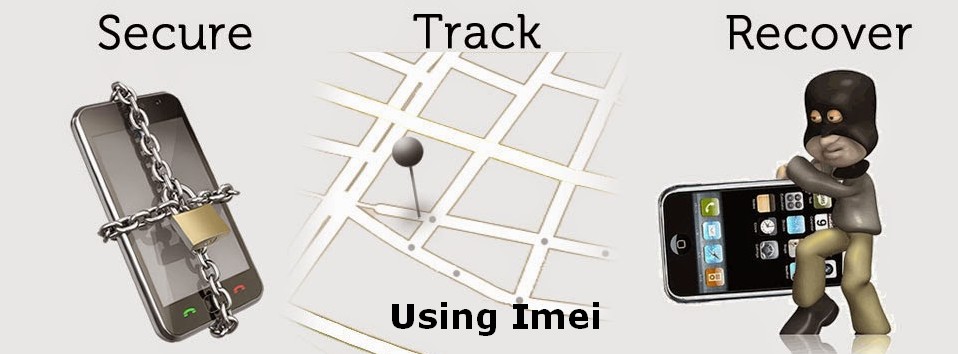
Its very common that people forget their phone somewhere or someone stole it. In that situation we loose hope, but now you can find lost phone easily. Now you can track mobile phone using IMEI number and find its exact location. Let me describe How to locate mobile phone with IMEI number.
find lost phone using imei
The number of lost phones is increasing every day rapidly and there is only one way to track it down that is IMEI number. IMEI stands for Internet Mobile Station Equipment Identity. It is a unique identification number which is assigned to every mobile during construction. This IMEI number is found printed inside the battery compartment of phone or inside the setting menu in about phone option including operating system specifications. If you still don’t find it then don’t worry there is one more way to deal with it.
Check This :- How to Find Lost Phone
This number can be known by dialing “*#06#” from your mobile phone. Once you dial it you get a number popup in your phone and that it your IMEI number. This number is also useful during police verification in tracking down your phone once you file the complaint of your lost phone.

You can also find your lost phone using Android Device manager and its very easy to track android phone with this.

How to track a stolen phone: [legally]

The following are the steps you need to follow:
1: First step includes filing of on FIR in any of your local police station. After filing the FIR, for the purpose of tracking the phone submit your IMEI number.
2: Submit a copy of your FIR as well as your IMEI number to your service provider. This is done to help out your service provider to track your phone.
3: Block your number so as to prevent it from misuse.
4: Once your number is traced by police you can easily get it back
Problem solved!! Now police will track your stolen phone and will help you in getting it back.
In India its very difficult to find lost phone using IMEI, as there are so many complaints for lost or stolen phone. And its not possible for police department to track all of them. So either you must have some jack or some setting in telecom company they can also help you in finding your phone. If they want they can give you your phone nearby location easily but they are restricted with laws. SO they don’t give it generally.
Read More »